How to map Cloud Storage as an Internet Drive
How to map Cloud Storage as an Internet Drive
How to map Cloud Storage as an Internet Drive
CameraFTP Cloud Storage supports WebDAV drive mapping. WebDAV is a set of HTTP extensions that allow users to edit and manage files collaboratively on a remote web server. WebDAV is a standard protocol and is now supported on all major operating systems. Most operating systems now can map WebDAV server as a local drive (or local file system) without installing any client software.
Please note WebDAV drive mapping is easy and convenient; however, it is inefficient and un-reliable accessing cloud storage over the Internet. If you need to upload / download large files / folders, it is recommended using CameraFTP File Explorer or CameraFTP FTP.
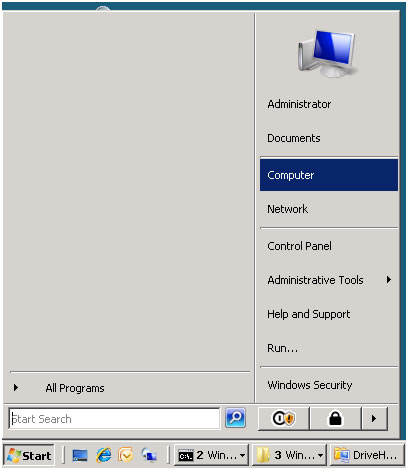
(1) Click on Start, then move mouse on top of “Computer” (or “My Computer”);
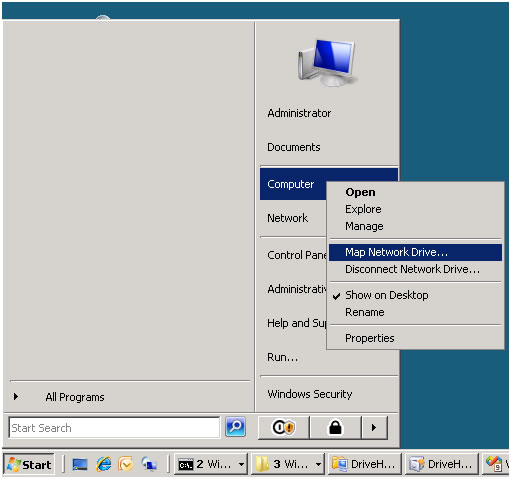
(2) Click on “Map Network Drive”, it will open the “Map Network Drive” dialog:
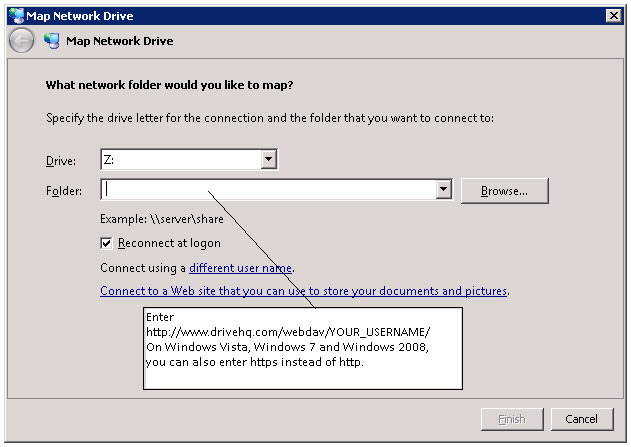
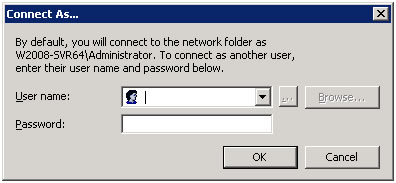
(3) Click on “Connect using a different user name” in the “Map Network Drive” dialog; it pops up a logon dialog as shown below. Note this step is required for Windows XP and Windows 2003 users; but can be skipped by Windows Vista, Windows 7 and Windows 2008 users.
Just enter your CameraFTP username and password to logon; then click on Ok to close the dialog.
On Windows 7 and Windows 2008R2, the Map Network Drive dialog is slightly different; as you can see in the below screenshot, there is a checkbox: “Connect using different credentials”. Check it and click on Finish, it will popup the same “drive mapping logon dialog”.
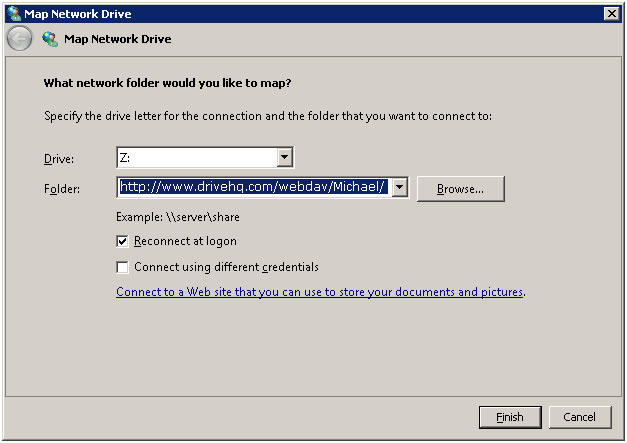
(4) Click on Finish in the “Map Network Drive” dialog. If the username and password are correct, and if network connection is fine, then it will open the CameraFTP Internet drive:
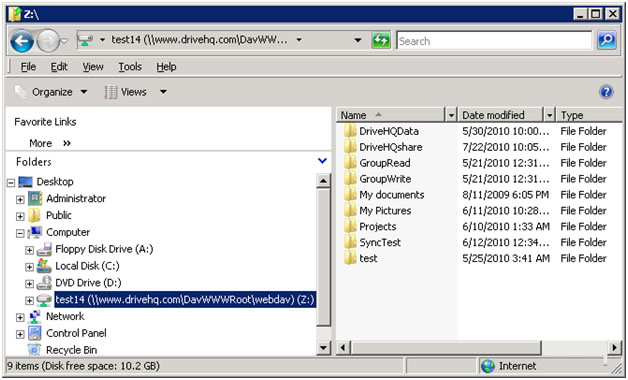
It's interesting to note that the Internet drive’s storage space and disk free space are displayed incorrectly. This appears to be a Microsoft WebDAV client problem. However, it usually does not affect your use of CameraFTP cloud storage.
By default, the drive name is displayed as:
USERNAME(https://www.cameraftp.com\DavWWWRoot\webdav)
You can right click on the drive name and rename it to a shorter name; see the screenshot below:
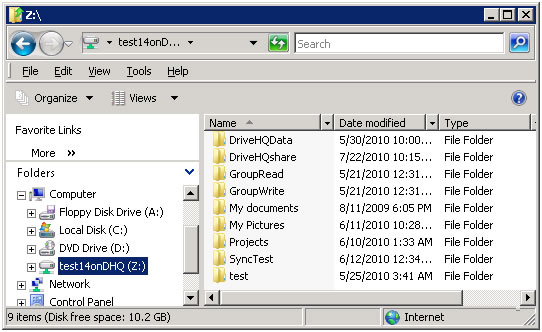
Your CameraFTP Internet drive is ready to use now. You can drag and drop or double click to open a file, edit it and save it directly.
- On Windows XP and Windows 2003, WebDAV does not support SSL / HTTPS;
- On Windows XP, you must check / click “Connect using a different user name” when mapping WebDAV drive;
- The displayed WebDAV drive free storage space is actually your system Drive’s free storage space
- Because WebDAV maps a network drive over the Internet connection, which is many times slower than your local network connection, and is even more slower than your local disk speed. When accessing a very large file or folder, your Windows Explorer might become non-responsive for a long time (to download / upload data). Sometimes, your Windows Desktop might also become non-responsive. Windows 7 and Windows 2008 have improved a lot on this. However, there is still one drawback. When copying large files, Windows 7 and Windows 2008 cannot display a true progress bar.
- On certain versions of Windows computers, the WebDAV drive maximum file size is limited to only 50MB. If you try to copy a large file [larger than 50MB], Windows will pop up the following error dialog.
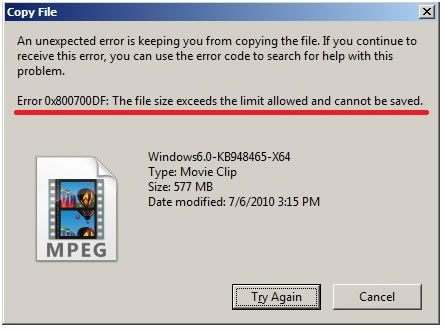
This is not a CameraFTP limitation. You can increase the limit by changing the registry key:
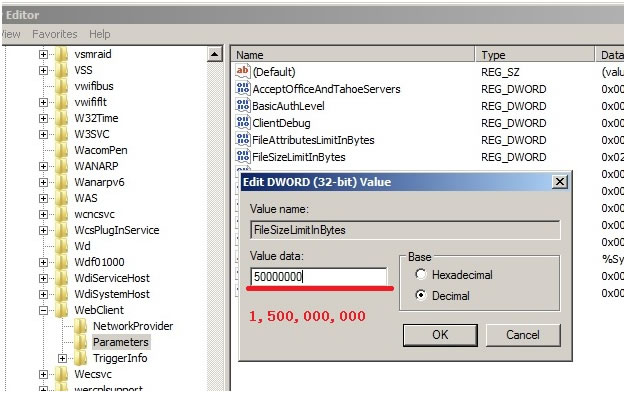
HKLM\SYSTEM\CurrentControlSet\Services\WebClient\Parameters\FileSizeLimitInBytes
The default is set to 50,000,000 (50MB); you can change the value using RegEdit tool. Please see the screenshot below. Increasing the value may not really help you on uploading / downloading large files / folders. If you need to upload / download very large files / folders, it is recommended using CameraFTP File Explorer (or CameraFTP Online Backup).
- WebDAV drive mapping requires the WebClient service to be started.
On certain computers, the WebClient service might be disabled, or not set to start automatically. To check the problem, you can open Control Panel, then double click on Administrative Tools, then double click on Services. It will then open the services dialog:
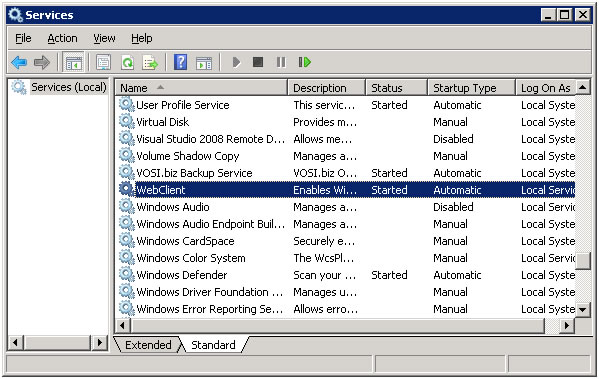
Locate the service by the name “WebClient”. Check if the status is “Started”. If not, double click on it, enable the service and then start it.
If you cannot find WebClient service, then it means it has not been installed on your PC. You can install it from your Windows OS setup.Open a command (console / DOS) window, type in the command as follows (you can change the drive letter as needed); then enter the username and password.
--------------------------------------The command parameter: /persistent:yes means the drive mapping will be remembered after computer reboot. It is optional.
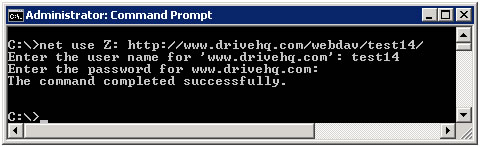
On Windows Vista, Windows 2008 and Windows 7, you can also use HTTPS URL.
If you want to map a drive using a command without manually entering the username and password, you can use the following command:
--------------------------------------To disconnect a mapped drive, there are several methods:
(1) You can click on Start ⇒ then right click on “Computer” (or “My Computer”), then click on “Disconnect Network Drive”.
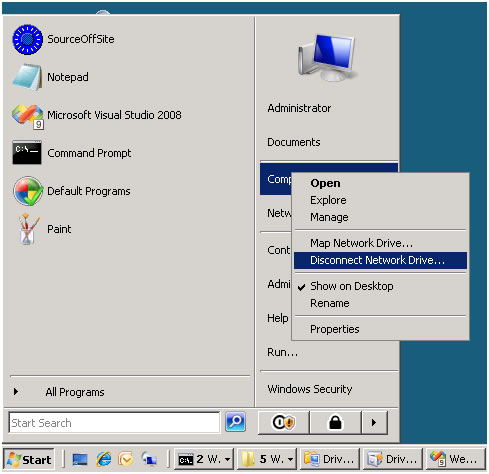
After you click on “Disconnect Network Drive”, it will pop up a new dialog:
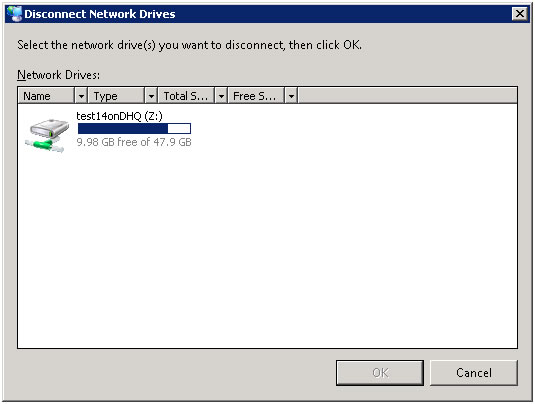
Select the drive to disconnect, then click on OK to disconnect the drive.
(2) An easier method is to just right click on the mapped drive, then click on “Disconnect”.
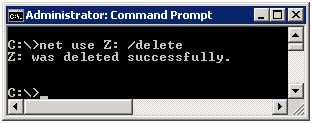
(3) You can also use Windows command-line to disconnect a mapped drive. Just type in the following command in the command window:
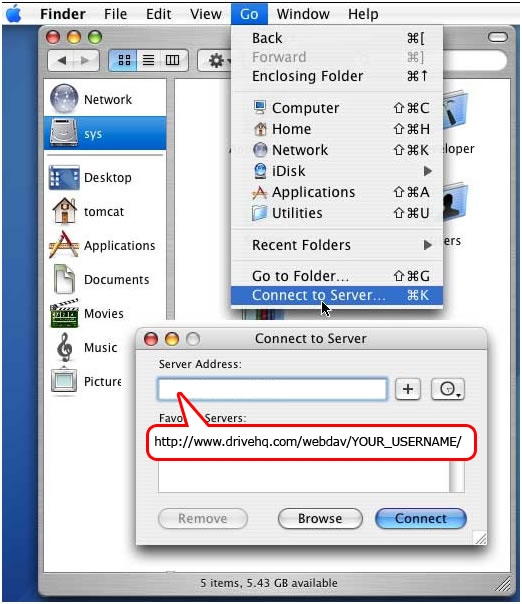
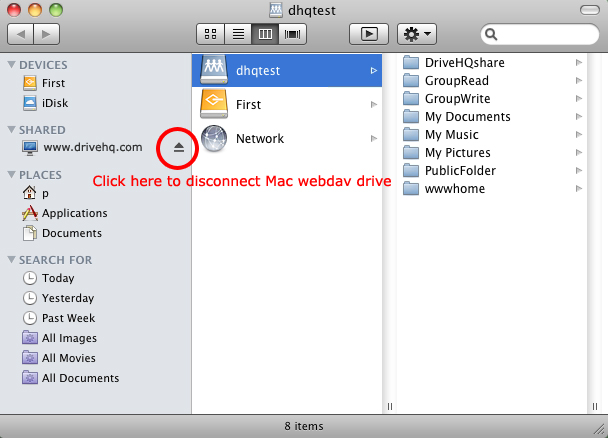
To map a WebDAV drive on Mac OS X, use Finder Go ⇒ Connect to Server command as shown below. In the popup dialog, enter the address of the CameraFTP WebDAV server in the Server Address field. The address should be as follows:
https://www.cameraftp.com/webdav/USERNAMEthen click on Connect to finish mapping the WebDAV drive.